Commands to set up TSEL
Published:
How to set up Docker image on TSEL(Flatcar Container Linux)
Setup Dockerfile
FROM ubuntu:20.04

ENV DEBIAN_FRONTEND=noninteractive

RUN apt-get update && apt-get install -y \
    build-essential \
    cmake \
    gcc \
    g++ \
    wget \
    curl \
    software-properties-common

# Generic clang/llvm for 20.04
RUN apt-get install -y \
    clang \
    llvm-dev \
    libclang-dev

# Specific LLVM/Clang 10 (available on 20.04)
RUN apt-get install -y \
    llvm-10-dev \
    clang-10 \
    libclang-10-dev \
    bear && \
    apt-get clean && rm -rf /var/lib/apt/lists/*

WORKDIR /workspace

CMD ["/bin/bash"]
Build the Docker image
docker build -t hpc-env:test .
Run the Docker container and mount the host’s /mnt/barbie/ and /sys/kernel/ directories to the container’s /data and /sys/kernel directories respectively.
docker run -it -v /mnt/barbie/:/data -v /sys/kernel/:/sys/kernel/ --privileged hpc-env:test
check if we have all the tools
clang --version
llvm-config --version
bear --version
which gcc
Advanced Usage
Mount the host’s current directory to the container’s /workspace directory.
Similar to the docker run command above, plus we mount the host’s current directory to the container’s /workspace directory.
docker run -it -v /mnt/barbie/:/data -v /sys/kernel/:/sys/kernel/ -v $(pwd):/workspace --privileged hpc-env:test
Detach from the container but leave it running behind the scenes
Ctrl-P, Ctrl-Q
if you type exit inside the container, the container will stop running. To bring it back
# find the container ID
docker ps -a
# start
docker start cd4e8c0b26dd
reattach to the container
- Reattach to the SAME interactive session
If you detached using Ctrl-P, Ctrl-Q, you can reattach using:
docker attach <container_name_or_id>
Example:
docker attach 1f68185ddbb2
To find this container_name_or_id, you can use:
# to see all running containers
docker ps
# to see all containers, including stopped ones
docker ps -a
This reconnects to the same shell you left earlier.
docker attach reconnects to the primary process (the one started with docker run). If that process ends, the container stops and attach won’t work.
- Open a NEW shell inside the running container
If you want a fresh terminal inside the same container, use:
docker exec -it <container_name_or_id> /bin/bash
Example:
docker exec -it 1f68185ddbb2 bash
This gives you a NEW shell Even if the original shell is stuck
Using vscode to access the container
- Use vscode to ssh to the container
- Download extension “Dev Containers” in vscode for Tsel
- Go to the Dev Containers tab
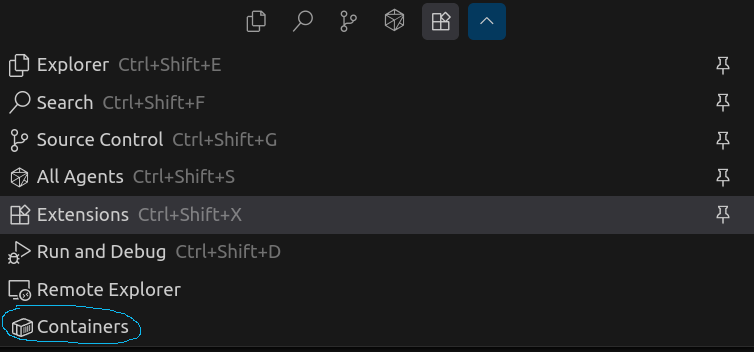
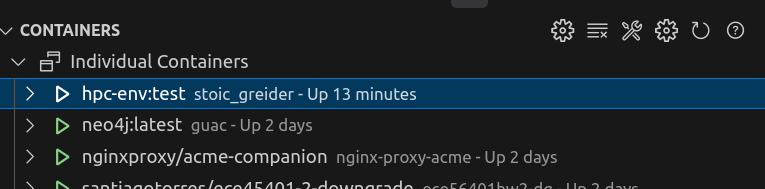
- Click out docker image